

Securing Azure Functions for Power Apps with Entra ID and Terraform
Introduction
Connecting Power Apps to custom backend APIs is common in enterprise environments. The harder part is the security layer — identity-based access instead of shared secrets, and infrastructure that is fully reproducible rather than manually configured.
This post walks through a template I built for exactly that: a C# Azure Function protected by Entra ID and EasyAuth v2, consumed by a Power Apps custom connector via OAuth 2.0, with all infrastructure and identity configuration automated in Terraform.
The full source code — including all Terraform configurations, the Function App, and the OpenAPI specification — is available as a public repository on my GitHub: https://github.com/philippgalliker/azure-functions-powerapps-connector.
C# was a deliberate choice. The Function runs inside the Microsoft ecosystem, it serves the Power Platform, and the entire identity stack is Entra ID. Keeping the backend in .NET 10 (isolated worker model) means first-class SDK support, minimal friction, and consistency with the platform it integrates into.
- Motivation
- Architecture overview
- Zero Trust
- Defense in Depth
- What Terraform creates
- The Azure Function
- The custom connector setup
- Where to find things in the Azure Portal and Entra ID
- Terraform and Azure auto-created resources (lifecycle caveat)
- Where to go from here
- Summary
Motivation
A common way to secure Azure Function APIs for Power Apps is with function keys — generate a key, paste it into the custom connector, and you have a working integration. This is a valid starting point, but as requirements around security and maintainability grow, it comes with trade-offs worth considering:
- Function keys are shared secrets. Anyone who has the key can call the API. There is no user identity, no audit trail, and revoking access means rotating the key for all consumers.
- There is no group-based access control. You cannot restrict which users in your tenant may call the API.
- Keys can end up hardcoded or stored in less secure locations — connector configurations, environment variables, or even source control.
- Infrastructure drift becomes harder to manage when app registrations, permissions, and security groups are configured manually.
This template takes a different approach: identity-based access at every layer, automated end-to-end with Terraform.
Architecture overview
The data flow is straightforward:
- A Power Apps canvas app calls the custom connector.
- The connector triggers an OAuth 2.0 authorization code flow against Entra ID.
- Entra ID issues a v2 access token with group claims to the signed-in user — only if the user is a member of the designated security group.
- The token is sent to the Azure Function.
- EasyAuth v2 validates the token at the platform level (issuer, audience, group membership) before the function code executes.
- If valid, the function returns a JSON response. If not, the caller gets HTTP 401.
Power Apps → Custom Connector → Entra ID (OAuth 2.0) → Azure Function (EasyAuth v2) → Response
The key architectural decision: no function keys, no shared secrets for API access. Authentication is purely identity-based. The function code itself uses AuthorizationLevel.Anonymous because EasyAuth already rejected anything unauthenticated before the code even runs.
Zero Trust
Zero Trust means "never trust, always verify" — no implicit trust based on network location, no assumed safety because a request originates from within a corporate network or a known service.
This template implements Zero Trust across three principles:
| Principle | How this repository implements it |
|---|---|
| Verify explicitly | Every request must carry a valid Entra ID token. EasyAuth v2 validates issuer, audience, and group membership before code executes. |
| Least privilege access | app_role_assignment_required = true — only security group members can even obtain a token. Everyone else is rejected at the identity layer. |
| Assume breach | No function keys, no shared secrets for API access — authentication is purely identity-based. Managed identity for storage access (no access keys). The connector client secret rotates annually via time_rotating. |
In concrete terms: even if an attacker has network access to the Function App URL, they cannot call the API without a valid token issued by your tenant, for the correct audience, and with the correct group membership claim. There is no key to steal, no secret to extract from environment variables, and no bypass via anonymous access.
Defense in Depth
Defense in Depth means layering multiple independent security controls so that no single failure grants access. In this template, an attacker would need to:
be in the correct Entra ID tenant → be a member of the security group → hold a valid token with the right audience → have the right group claim → communicate over HTTPS
Compromise of any single layer alone does not grant access.
| Layer | Control | What it stops |
|---|---|---|
| 1. Entra ID app registration | sign_in_audience = "AzureADMyOrg" | Users from other tenants cannot authenticate (B2B guests in your tenant can still sign in — downstream layers gate their access) |
| 2. Security group gate | app_role_assignment_required = true | Internal users outside the group cannot obtain a token |
| 3. EasyAuth v2 (platform) | unauthenticated_action = "Return401" | Unauthenticated requests never reach your code |
| 4. Allowed groups check | allowed_groups in EasyAuth config | Token must contain the specific security group GUID |
| 5. Audience validation | allowed_audiences in EasyAuth config | Tokens minted for other APIs are rejected |
| 6. HTTPS only | https_only = true, minimum_tls_version = "1.2" | No cleartext traffic |
| 7. No anonymous storage | allow_nested_items_to_be_public = false + managed identity | No key leakage, no public blob access |
| 8. Admin consent pre-granted | Delegated permission grant via Terraform | Users cannot consent to rogue apps — only the declared connector has delegated access |
Each of these layers is configured declaratively in Terraform. None of them rely on manual portal clicks that could be forgotten or misconfigured.
What Terraform creates
The infrastructure is split into two Terraform projects: infra/bootstrap/ for remote state storage and infra/main/ for everything else.
The bootstrap project — remote state
Before Terraform can manage infrastructure, it needs a place to store its state file. This is the classic chicken-and-egg problem: you cannot store state remotely before the remote backend exists.
The infra/bootstrap/ project solves this with a dedicated Terraform configuration that uses a local backend on purpose. It creates:
- A Resource Group for state storage
- A Storage Account with HTTPS-only, TLS 1.2, no public blob access
- A Blob Container (
tfstate) for the state file - An RBAC role assignment —
Storage Blob Data Contributorfor the deploying user
The bootstrap state itself is small, contains no secrets, and is safe to commit to the repository for reproducibility.
Why Terraform for bootstrapping (not a CLI script)
A common alternative is a Bash script with az storage account create. Terraform is a better fit here:
- Declarative and idempotent — safe to re-run, handles drift automatically
- Destroyable —
terraform destroycleans up everything - Reviewable — the bootstrap infrastructure is code-reviewed like all other IaC
- Consistent tooling — one tool for all infrastructure, no separate scripting layer
What remote state solves
A remote backend stores Terraform's state file in a secure, central location instead of on a developer's laptop:
- Encrypted at rest in Azure Blob Storage
- Access-controlled via RBAC (Entra ID auth, no storage access keys)
- Shared safely across team members and CI/CD pipelines
- Single source of truth — no conflicting local copies
The main project references this backend via backend.tfvars:
# infra/main/providers.tf
backend "azurerm" {
  use_azuread_auth = true
  key              = "function-connector.tfstate"
}
Entra ID authentication (use_azuread_auth = true) means no storage access key is stored anywhere — not in config files, not in CI variables.
The main project — infrastructure and identity
main provisions everything needed for the secure Function-to-Power-Apps flow:
| Resource | Purpose |
|---|---|
| Resource Group | Container for all Azure resources |
| Storage Account + Blob Container | Flex Consumption deployment storage, managed identity auth |
| Log Analytics Workspace | Centralized log collection |
| Application Insights | Monitoring and diagnostics |
| App Service Plan (FC1) | Flex Consumption serverless hosting |
| Azure Function App | C# API endpoint, HTTPS-only, EasyAuth v2 configured |
| Entra ID app registration (Function API) | Protects the Function, issues v2 tokens with Function.Access role |
| Entra ID security group | Gates access — only members get tokens |
| App role assignment | Function.Access role assigned to the security group |
| Entra ID app registration (Connector) | OAuth 2.0 auth code flow for the Power Apps custom connector |
| Admin consent grant | Pre-consented user_impersonation — no per-user consent prompts |
| Client secret with annual rotation | time_rotating resource triggers rotation every 365 days |
| Service principals (Function API + Connector) | Enterprise app identities backing the app registrations |
| Storage RBAC role assignments (Function App) | Storage Blob Data Owner, Storage Queue Data Contributor, Storage Table Data Contributor for the managed identity |
| Resource provider registration | Microsoft.AlertsManagement — required for smart detector alert rules |
| Smart Detector Alert Rule + Action Group | Auto-created by Azure when deploying Application Insights — explicitly declared for clean lifecycle management |
The EasyAuth v2 configuration in Terraform
The most critical block in the entire configuration is the auth_settings_v2 on the Function App. This is where all the identity checks converge:
# EasyAuth v2 – Entra ID (Azure AD) as the sole auth provider.
auth_settings_v2 {
  auth_enabled           = true
  require_authentication = true
  unauthenticated_action = "Return401"
  default_provider       = "azureactivedirectory"
  runtime_version        = "~1"

  login {
    # Store auth tokens server-side so the function can call downstream
    # APIs using the logged-in user's token if needed.
    token_store_enabled = true
  }

  active_directory_v2 {
    client_id            = azuread_application.function_api.client_id
    tenant_auth_endpoint = "https://login.microsoftonline.com/${data.azurerm_client_config.current.tenant_id}/v2.0"

    # Only accept tokens whose audience matches our application ID URI.
    allowed_audiences = [local.function_app_audience]

    # Restrict access to members of this Entra security group.
    # Requires the "groups" claim in the token (configured on the app registration).
    allowed_groups = [azuread_group.function_access.object_id]
  }
}
This single block enforces: authentication required, unauthenticated requests get 401, only tokens from your tenant are accepted, only tokens for the correct audience are accepted, and only tokens with the correct group claim pass through. All before your C# code executes a single line.
Note that the allowed_groups check requires the groups claim to be present in the access token. This is configured on the Function API app registration via an optional_claims block that requests the groups claim in access tokens — without it, EasyAuth would have no group information to evaluate.
The token_store_enabled = true setting stores auth tokens server-side. This is useful if the function needs to call downstream APIs (e.g. Microsoft Graph) on behalf of the signed-in user using their delegated token.
The connector app registration
The connector registration is a separate Entra ID application with:
sign_in_audience = "AzureADMyOrg"— same tenant only- Redirect URIs for Power Platform's consent endpoints (global, Europe, preview)
- A declared
required_resource_accessfor theuser_impersonationscope on the Function API - Admin consent pre-granted via
azuread_service_principal_delegated_permission_grant— users never see a consent prompt
The client secret is managed with time_rotating:
resource "time_rotating" "connector_secret_rotation" {
  rotation_days = 365
}

resource "azuread_application_password" "connector" {
  application_id = azuread_application.connector.id
  rotate_when_changed = {
    rotation = time_rotating.connector_secret_rotation.id
  }
}
When rotation triggers, terraform apply generates a new secret and the old one expires. The new secret must then be updated in the Power Apps custom connector.
The Azure Function
The function itself is intentionally minimal — a .NET 10 isolated worker with a single HTTP-triggered endpoint:
public sealed partial class HelloFunction(ILogger<HelloFunction> logger)
{
    [Function("Hello")]
    public async Task<HttpResponseData> RunAsync(
        [HttpTrigger(AuthorizationLevel.Anonymous, "get")] HttpRequestData request,
        CancellationToken cancellationToken)
    {
        LogProcessing(logger);

        var response = request.CreateResponse(HttpStatusCode.OK);
        await response.WriteAsJsonAsync(
            new { message = "Hello, world!" },
            cancellationToken).ConfigureAwait(false);
        return response;
    }

    [LoggerMessage(Level = LogLevel.Information, Message = "Processing Hello request")]
    private static partial void LogProcessing(ILogger logger);
}
AuthorizationLevel.Anonymous is deliberate. It means the Functions runtime does not require a function key. EasyAuth v2 handles all authentication and authorization at the platform level — unauthenticated requests are rejected with HTTP 401 before this code runs.
This is a template. The Hello endpoint is a placeholder. Replace it with your actual business logic — the security model stays the same regardless of what the function does.
An OpenAPI specification (swagger.json) is included for the Power Apps custom connector import. It defines the OAuth 2.0 security scheme with placeholders that are filled from Terraform outputs after deployment.
Managed identity for storage — and the AzureWebJobsStorage caveat
The Function App uses a system-assigned managed identity for all storage access instead of connection strings. Terraform assigns three RBAC roles to the managed identity:
| Role | Why it is needed |
|---|---|
| Storage Blob Data Owner | Read/write deployment blobs and manage host lock leases |
| Storage Queue Data Contributor | Internal queue communication between the Functions runtime components |
| Storage Table Data Contributor | Timer trigger bookkeeping |
There is one important caveat: Azure auto-generates an AzureWebJobsStorage connection string with an empty AccountKey. If both the connection string and the managed identity configuration exist, the connection string wins — causing HTTP 403 errors at runtime. The Terraform configuration explicitly clears this:
app_settings = {
  "AzureWebJobsStorage"              = ""
  "AzureWebJobsStorage__accountName" = azurerm_storage_account.sa.name
}
Setting AzureWebJobsStorage to an empty string forces the runtime to fall back to the __accountName form, which uses managed identity. This is a common gotcha with Flex Consumption and managed identity that is easy to miss.
The custom connector setup
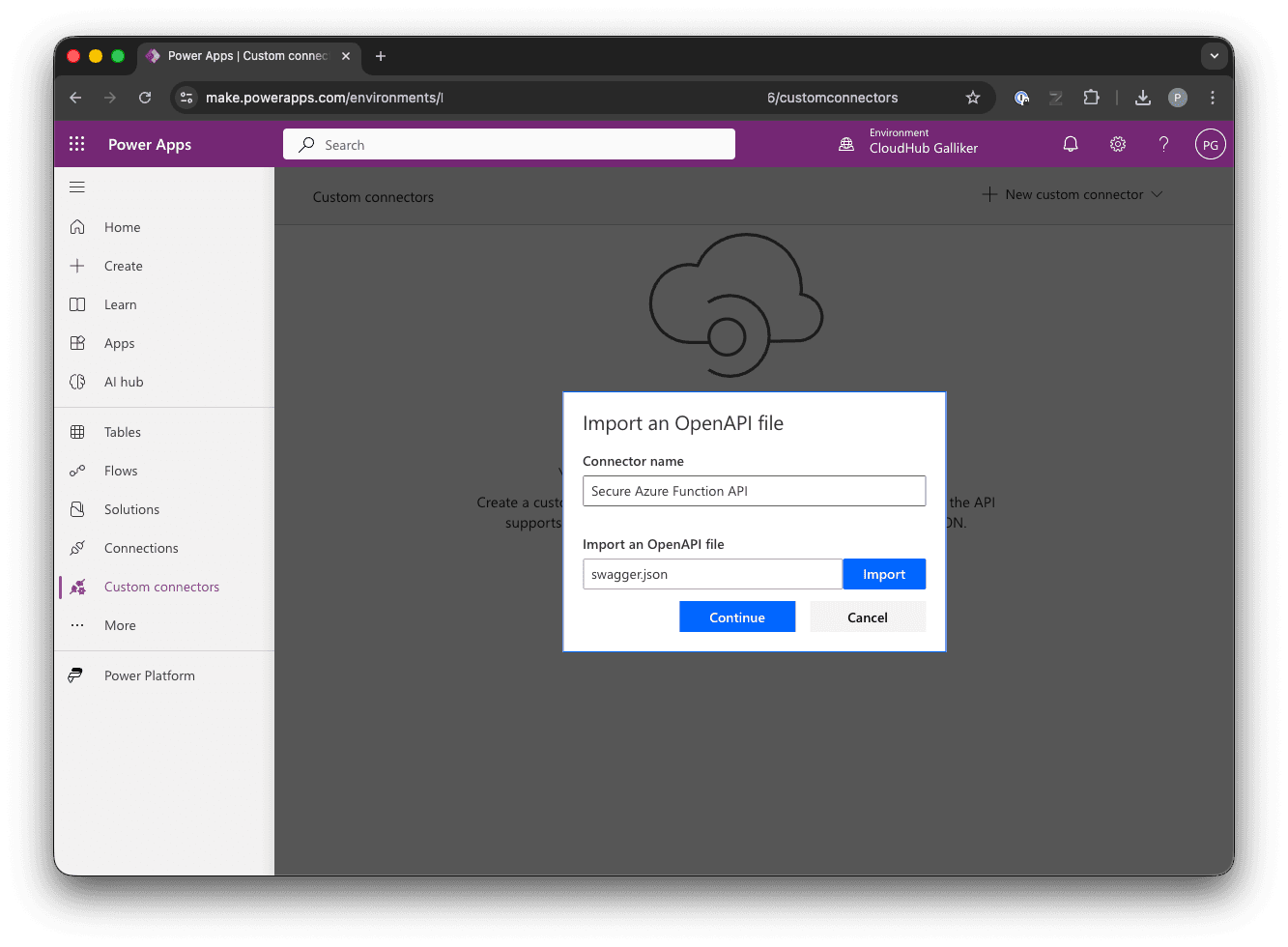
The connector is the only manual step. After deploying the infrastructure and function code, you import the OpenAPI file in the Power Apps maker portal and configure the OAuth 2.0 security settings using values from Terraform outputs.
The security tab is where the Entra ID integration is configured:
| Field | Source |
|---|---|
| Client ID | terraform output connector_client_id |
| Client secret | terraform output -raw connector_client_secret |
| Authorization URL | Leave empty — clear any pre-filled value. Power Apps builds it automatically from the Tenant ID. |
| Tenant ID | Extract the GUID from terraform output connector_auth_url |
| Resource URL | terraform output function_app_audience |
| Enable on-behalf-of login | false (default) — not needed; the connector authenticates directly against the Function API |
| Scope | terraform output connector_oauth_scope |
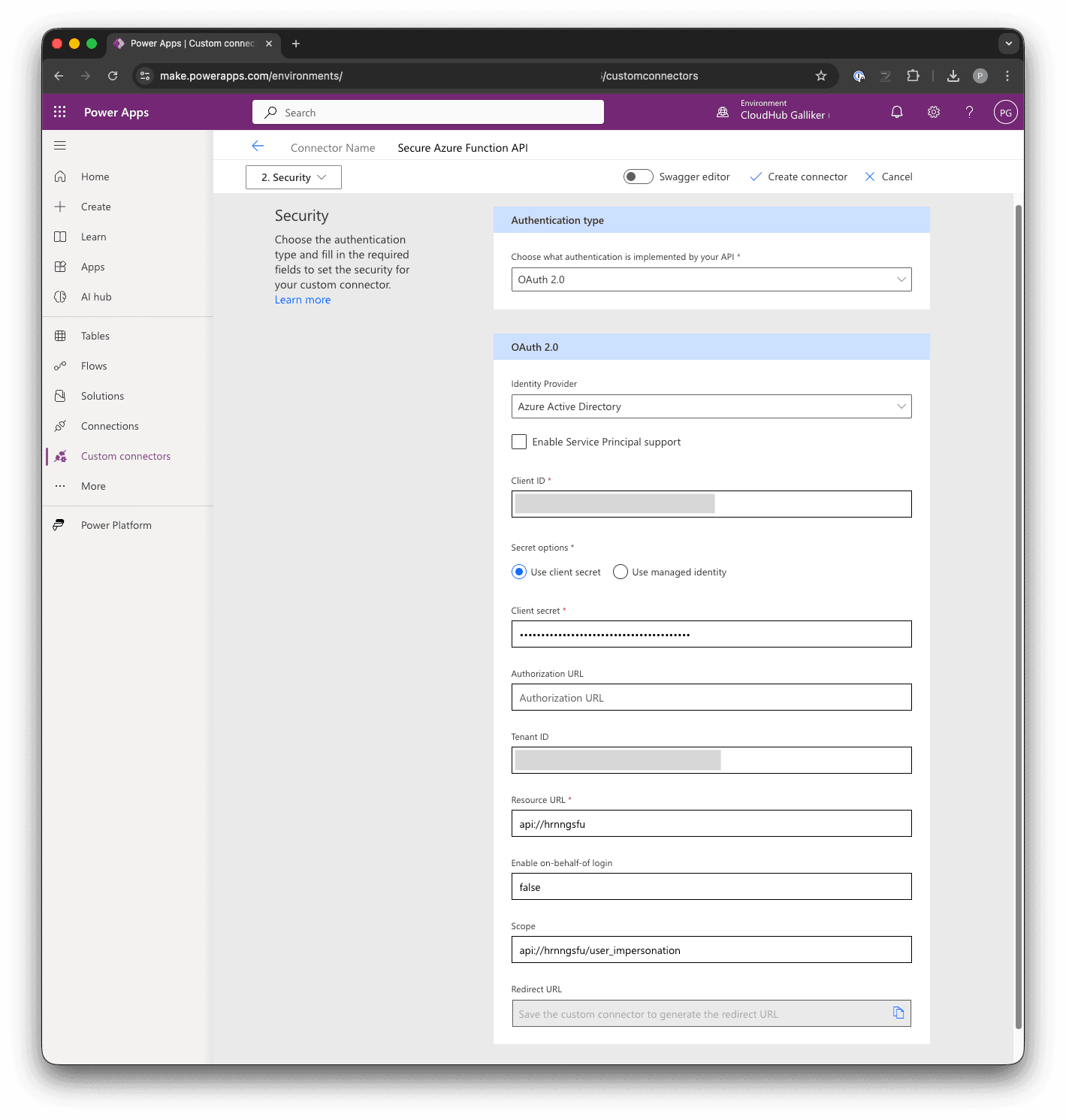
After saving, Power Apps generates a redirect URL. This URL must be added back to the Terraform configuration (connector_redirect_uri variable in terraform.tfvars) and applied with terraform apply. This registers the redirect URI on the connector app registration so the OAuth flow can complete — without it, Entra ID will reject the callback and the connector cannot obtain a token.
To verify the end-to-end flow, switch to the Test tab in the custom connector editor. Click + New connection, sign in with a user who is a member of the Entra security group, select the Hello operation, and click Test operation.
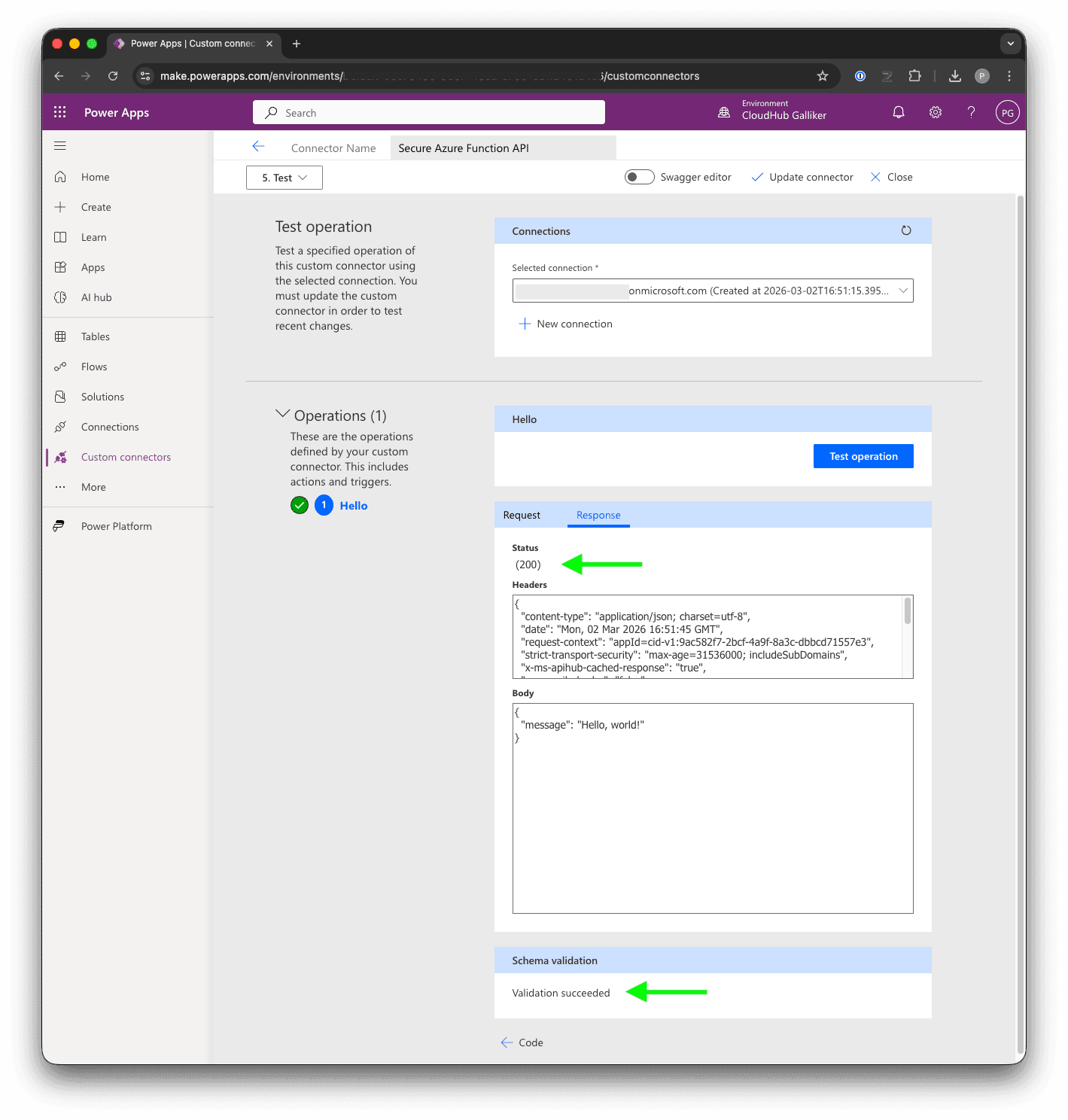
A user who is not a member of the security group will get a 401 — the token is issued, but EasyAuth rejects it because the required group claim is missing:
Where to find things in the Azure Portal and Entra ID
One of the benefits of Terraform is that infrastructure is documented as code. But you will still need to verify and inspect resources in the portal. Here is where to find everything that Terraform creates.
Azure Portal (portal.azure.com)
| Resource | Portal path |
|---|---|
| Resource Group | Home → Resource groups → (name from terraform output resource_group_name) |
| Function App | Home → Resource groups → [rg] → (name from terraform output fa_name) |
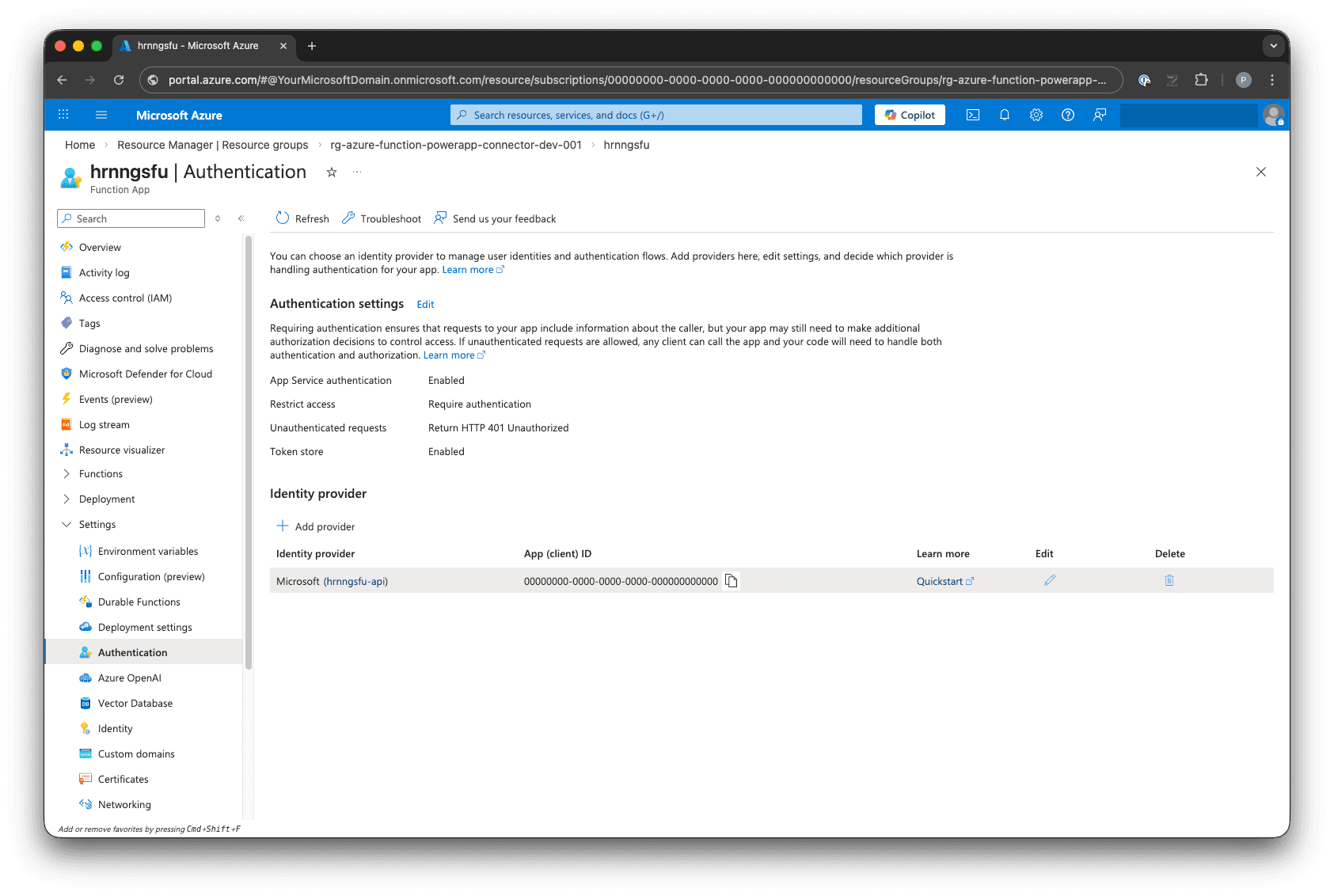
| Function App — Authentication | Function App → Settings → Authentication |
| Function App — Identity | Function App → Settings → Identity → System assigned |
| Function App — Configuration | Function App → Settings → Environment variables |
| Storage Account | Home → Resource groups → [rg] → (name from terraform output sa_name) |
| Storage Account — RBAC | Storage Account → Access Control (IAM) → Role assignments |
| App Service Plan | Home → Resource groups → [rg] → (name from terraform output asp_name) |
| Application Insights | Home → Resource groups → [rg] → (Application Insights resource) |
| Log Analytics Workspace | Home → Resource groups → [rg] → (Log Analytics resource) |
| Smart Detector Alert Rule | Home → Resource groups → [rg] → (alert: "Failure Anomalies - ...") |
| Action Group | Home → Resource groups → [rg] → (action group: "Application Insights Smart Detection") |
Entra ID Admin Center (entra.microsoft.com)
| Resource | Portal path |
|---|---|
| Function API app registration | Identity → Applications → App registrations → All applications → (display name from function_app_display_name, defaults to <fa_name>-api) |
| Function API — Expose an API | App registration → Manage → Expose an API (shows user_impersonation scope and Application ID URI) |
| Function API — App roles | App registration → Manage → App roles (shows Function.Access role) |
| Function API — Enterprise app (Service Principal) | Identity → Applications → Enterprise applications → (same display name) → Properties (shows app_role_assignment_required = Yes) |
| Connector app registration | Identity → Applications → App registrations → All applications → (display name: <fa_name>-api-connector) |
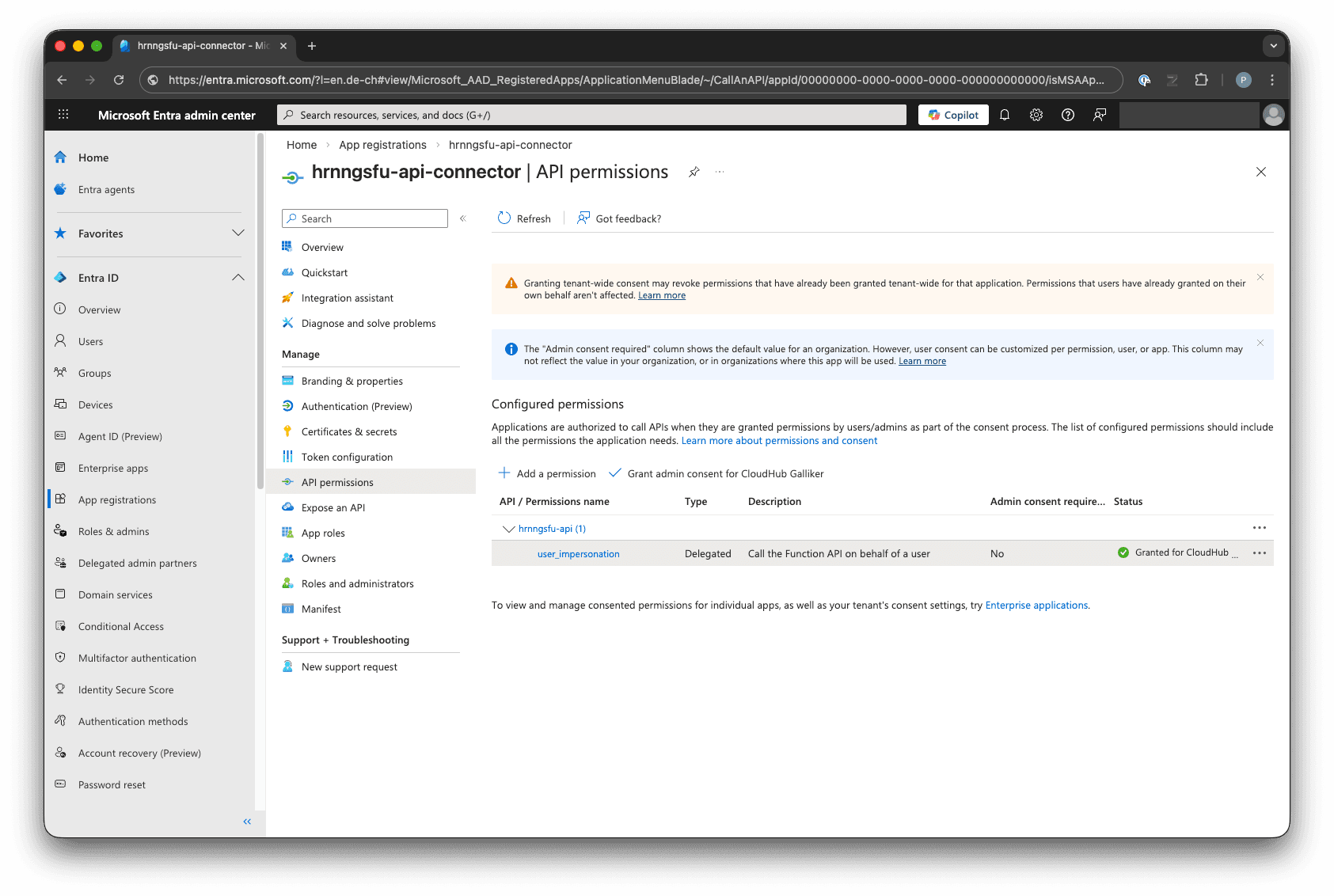
| Connector — API permissions | App registration → Manage → API permissions (shows user_impersonation with admin consent granted) |
| Connector — Certificates & secrets | App registration → Manage → Certificates & secrets → Client secrets |
| Connector — Redirect URIs | App registration → Manage → Authentication → Web redirect URIs |
| Security group | Identity → Groups → All groups → (name from terraform output function_access_group_name) |
| Security group — Members | Group → Manage → Members |
| Admin consent grant | Enterprise applications → (connector service principal) → Security → Permissions |
Terraform and Azure auto-created resources (lifecycle caveat)
When you deploy Application Insights, Azure automatically creates standalone resources behind the scenes: a Smart Detector alert rule ("Failure Anomalies") and an action group ("Application Insights Smart Detection"). These are independent Azure resources — they are not sub-resources of Application Insights.
This causes a practical problem: terraform destroy cannot remove resources it does not know about. If these auto-created resources are not in Terraform state, they are left behind as orphans, and subsequent deployments or manual cleanup become messy.
The solution in this template is to explicitly declare them in Terraform:
resource "azurerm_monitor_action_group" "smart_detection" {
  name                = "Application Insights Smart Detection"
  resource_group_name = azurerm_resource_group.rg.name
  short_name          = "SmartDetect"
  # ...
}

resource "azurerm_monitor_smart_detector_alert_rule" "failure_anomalies" {
  name                = "Failure Anomalies - ${azurerm_application_insights.ai.name}"
  resource_group_name = azurerm_resource_group.rg.name
  detector_type       = "FailureAnomaliesDetector"
  # ...
}
Azure also silently attaches a hidden tag to the Application Insights resource. The lifecycle { ignore_changes = [tags] } block prevents perpetual diffs.
Best practice: model and manage all Azure auto-created side-resources in Terraform to maintain full lifecycle control and ensure clean teardown.
Where to go from here
This template is a starting point. A few directions to extend it:
- Add real business logic. Replace the Hello endpoint with actual API operations — CRUD against Cosmos DB, calls to Microsoft Graph, file processing, whatever your Power App needs. The security model stays the same.
- Connect to more Azure services. The Function App has a system-assigned managed identity. To grant it access to Key Vault, Cosmos DB, SQL Database, or other services, add
azurerm_role_assignmentresources referencing the managed identity's principal ID. No connection strings needed. - CI/CD pipeline. Add a GitHub Actions or Azure DevOps pipeline for
terraform planon pull requests andterraform applyon merge. The remote state backend already supports this — the pipeline authenticates with a service principal or workload identity federation. - Multiple environments. Use Terraform workspaces or separate tfvars files per environment (dev, staging, prod). The bootstrap storage account can hold multiple state files.
- Private networking. Add VNet integration, private endpoints for the storage account, and restrict the Function App to internal traffic only. This adds a network perimeter on top of the identity-based controls.
- Custom domain and API Management. Put Azure API Management in front of the Function App for rate limiting, request transformation, and a custom domain. The Entra ID authentication still applies end-to-end.
- Monitoring and alerting. Application Insights and Log Analytics are already provisioned. Build KQL queries and alert rules for failed authentication attempts, latency spikes, or function errors.
Summary
This repository demonstrates that securing an Azure Function for Power Apps consumption does not require complex middleware or third-party tooling. The entire security model runs on Entra ID and Azure platform features:
- EasyAuth v2 handles token validation at the platform level — no authentication code in the function.
- Security groups control who can call the API — no key management.
- Terraform automates everything — app registrations, role assignments, consent grants, infrastructure — so the security configuration is reviewable, reproducible, and destroyable.
- Zero Trust and Defense in Depth are not abstract concepts here — they are concrete Terraform resources and configuration blocks.
- The only manual step is the Power Apps custom connector setup, which requires the Power Apps maker portal. Everything else is
terraform apply.